
Check where your passkey is saved and which recovery options your account actually supports. Create it on a device you control, test another supported way in and keep the old device until you have signed in successfully on its replacement.
What to know
- A passkey may sync through a provider or stay tied to one device, which changes your recovery planning.
- Google warns against creating a personal passkey on a shared device that someone else can unlock.
- Try your supported backup sign-in route while you still have working access.
Read the save prompt
Before accepting a passkey prompt, check where the credential will be saved. The device or password manager named there affects what happens when you replace your phone or computer.
FIDO describes passkeys as cryptographic credentials designed for phishing-resistant sign-in. They can sync through a provider or remain tied to a single device. The fingerprint or PIN prompt alone does not tell you which arrangement you have.
Microsoft’s documentation distinguishes a synced credential manager from a passkey stored locally with Windows Hello. For a device-bound passkey, losing the device means losing that credential unless you have another supported way into the account.
Keep personal passkeys off shared devices
Google warns that someone who can unlock a device may be able to use a passkey created there to access your account, even after you sign out. Its advice is to create personal passkeys only on devices you own and use.
On a household laptop, check who else can unlock the same device or user session before saving a personal credential. Borrowing a computer for a few minutes is a reason to skip the save prompt.
Google also says fingerprint and face-unlock data stays on the device. For Microsoft work or school accounts, the organisation can limit the passkey options available, so follow its IT guidance.
Check recovery before you need it
Open the account’s official security settings while your current sign-in still works. An old recovery number is easier to correct now than after a phone disappears.
If a password manager syncs your passkeys, read its recovery instructions too. You need a workable route back to that manager as well as the account whose passkey it stores.
- Confirm that the listed recovery email address or phone number is still accessible to you.
- Identify and test another sign-in method the service supports, while keeping your current working method.
- Store recovery codes privately if the service supplies them, following its instructions.
- Check support for the phone, computer and browser you actually use. Do not assume a work account offers the same choices as a personal one.
Sign in on the replacement before resetting the old device
Set up the new device and complete a normal sign-in to the intended account before handing over or resetting the old one. Check the account identity as well as whether the sign-in succeeded, especially if you use personal and work profiles.
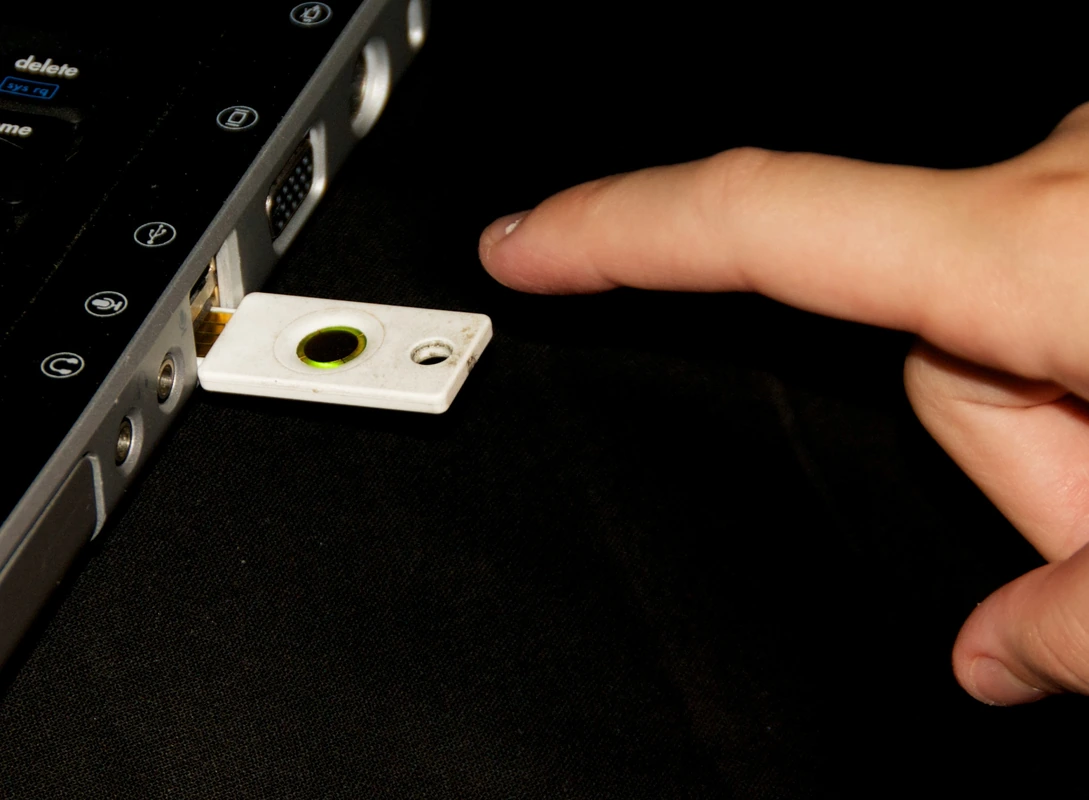
Microsoft’s save options include a password manager, a phone or tablet, a physical security key and a local Windows device. Availability varies by account and setup; inspect the option offered instead of assuming every passkey will transfer automatically.
Move one account at a time. If the new device cannot use its passkey, follow the service’s documented alternative while you still have access on the old device.
Sources & further reading
Sources checked 12 Nov 2026.